你正在訪問的內容是外部程式的映像位址,僅用於使用者加速訪問,本站無法保證其可靠性。當前的連結位址(單點即可複製)為 https://greasyfork.org.cn/zh-CN/scripts/550537-ao3-site-wizard,源站連結 點此以跳轉。
AO3: Site Wizard
Make AO3 easier to read: customize fonts and sizes, set site colors, adjust work reader margins, fix spacing issues, and configure text alignment preferences.
AO3: Site Wizard
Transform your AO3 reading experience with complete font and layout control:
- ✏️ Site-Wide Font Customization — Change fonts, sizes, and weights across the entire site.
- 🎨 Custom Colors — Personalize site colors and the AO3 logo appearance.
- 📖 Work-Specific Formatting — Customize how stories appear with width, alignment, and spacing controls.
- 🎯 Element-Specific Fonts — Set different fonts for headers, code blocks, and other elements.
- ✨ Automatic Spacing Fix — Eliminates excessive paragraph spacing in poorly formatted works.
✨ Features
Site-Wide Formatting
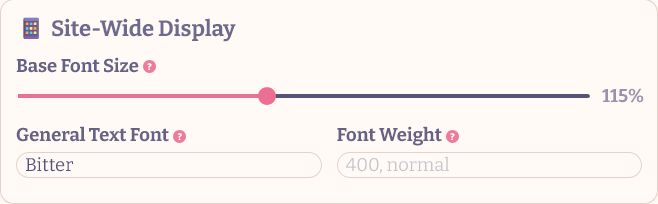
- Base Font Size: Adjust the overall text size for the entire site (50-200% of browser default).
- General Text Font: Set a custom font family for most site text.
- Font Weight: Control the boldness of general text across AO3.
Work Formatting
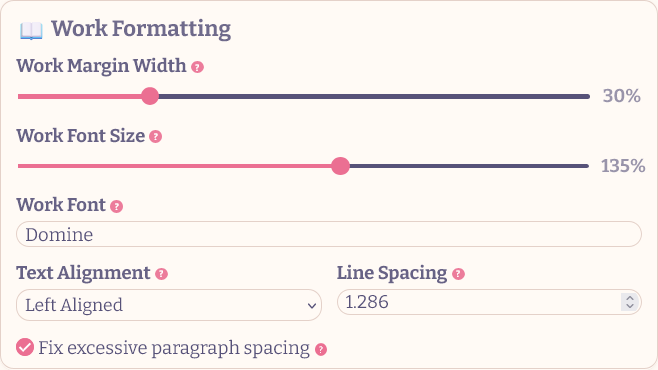
- Work Margin Width: Control how wide the work reader appears (10-100% of viewport).
- Font Size: Scale work text relative to your site base size (50-200%).
- Text Alignment: Choose between left-aligned, justified, or right-aligned text.
- Line Spacing: Fine-tune vertical space between paragraphs with decimal precision.
- Work Font: Set a specific font family just for reading stories.
- Spacing Fix: Automatically removes unnecessary blank lines and excessive spacing.
Element-Specific Formatting
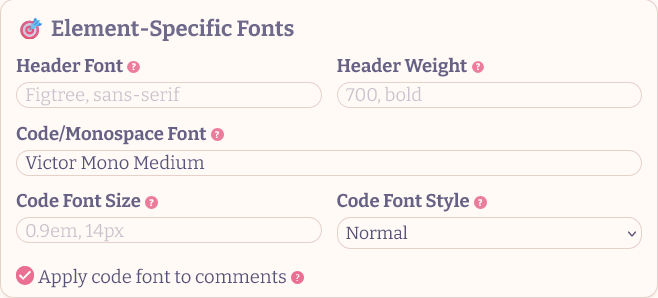
- Header Font: Customize fonts for all headings (H1-H6).
- Header Weight: Control header text boldness separately from body text.
- Code/Monospace Font: Set fonts for code blocks and preformatted text.
- Code Font Style: Choose normal or italic styling for code elements.
- Code Font Size: Scale code text relative to surrounding content.
- Apply code font to comments: Use code font on all textareas.
Colors
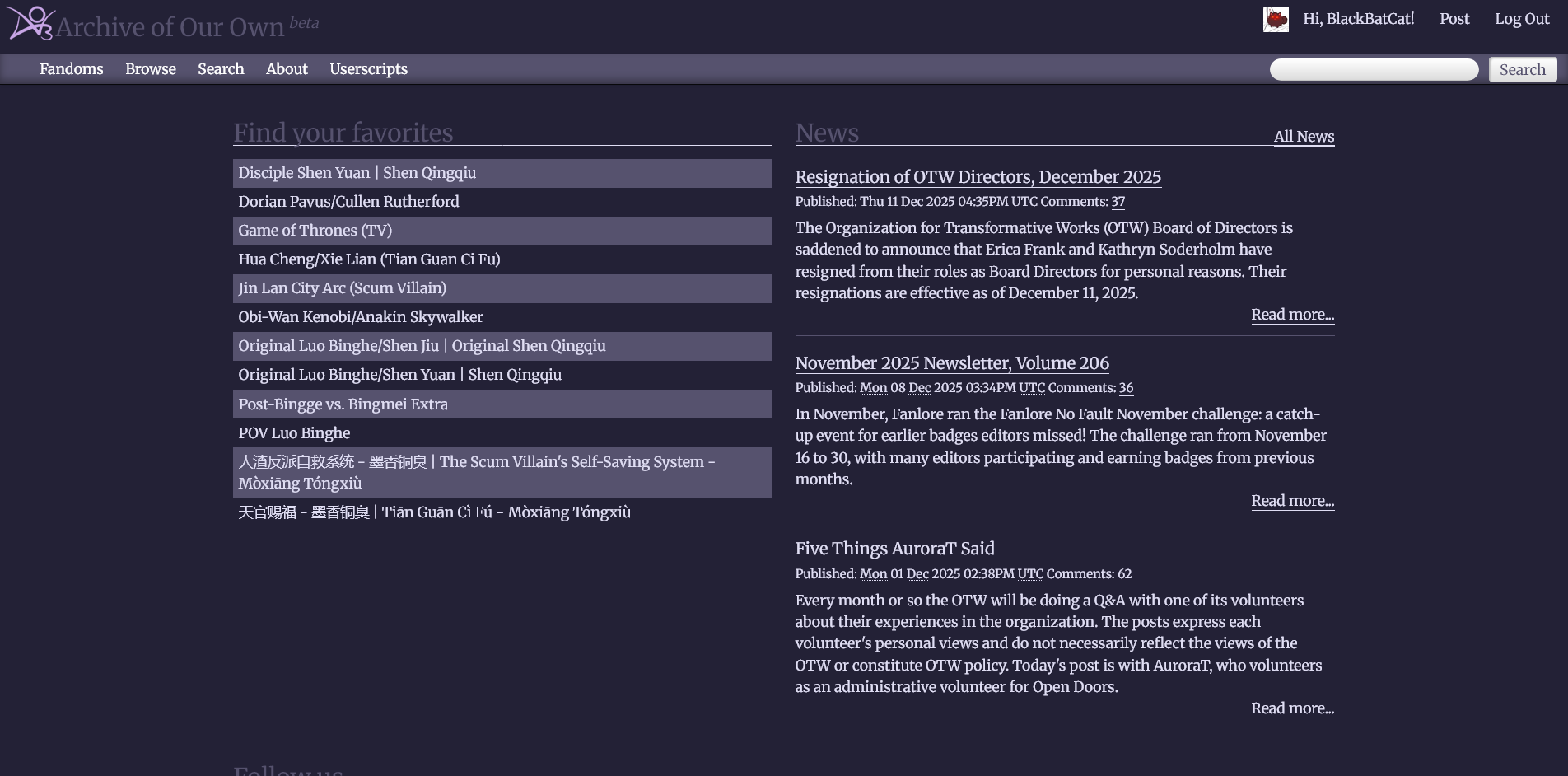
- Background Color: Customize the background color of the entire site.
- Text Color: Change the default text color across AO3.
- Header Color: Set a custom color for headers and primary UI elements.
- Accent Color: Control the color of accent elements like borders and highlights.
- Logo Color: Transform the AO3 logo color using CSS filters. Use the color filter generator to create custom filter values for any desired logo color.
⚙️ How to Use
⚠️ Important for Chromium-based browsers: If you're using Chrome, Brave, Vivaldi, or Microsoft Edge on PC, an extra activation step is required. Follow these instructions.
- Install with a userscript manager:
- Tampermonkey
- Click Userscripts in the header menu, then Site Wizard to customize.
- Adjust fonts, sizes, alignment, and spacing to your preference.
- Click Save — changes persist across browser sessions.
💾 Backup Your Settings
- Export Settings: Download your configuration as a timestamped JSON file for backup or transfer.
- Import Settings: Upload a previously exported JSON file to restore your customizations.
- Reset to Defaults: Restore all settings to their original values.
🎨 Customization Tips
Font Recommendations
- Sans-serif: Figtree, Apfel Grotezk , SF Pro
- Serif: Merriweather, Bitter, Domine
- Monospace: Victor Mono (set to italics for cursive), Cascadia Code, Martian Mono
Check out my other scripts:
- AO3: Advanced Blocker - Block works on AO3 based on tags, authors, titles, word counts, language, completion status, and much more.
- AO3: Skin Switcher - Change skins from anywhere on AO3.
- AO3: Reading Time & Quality Score - Adds reading time estimates and quality indicators to works.
- AO3: Chapter Shortcuts - Add a customizable shortcut to the latest chapter of works.
- AO3: No Re-Kudos - Hide kudos button if you've already left kudos.